AI logo generator9 min read
How to Make a Logo With an AI Logo Generator
A plain-English guide to making a logo with an AI logo generator, from what to type and which style to pick to judging the results and getting the right files.
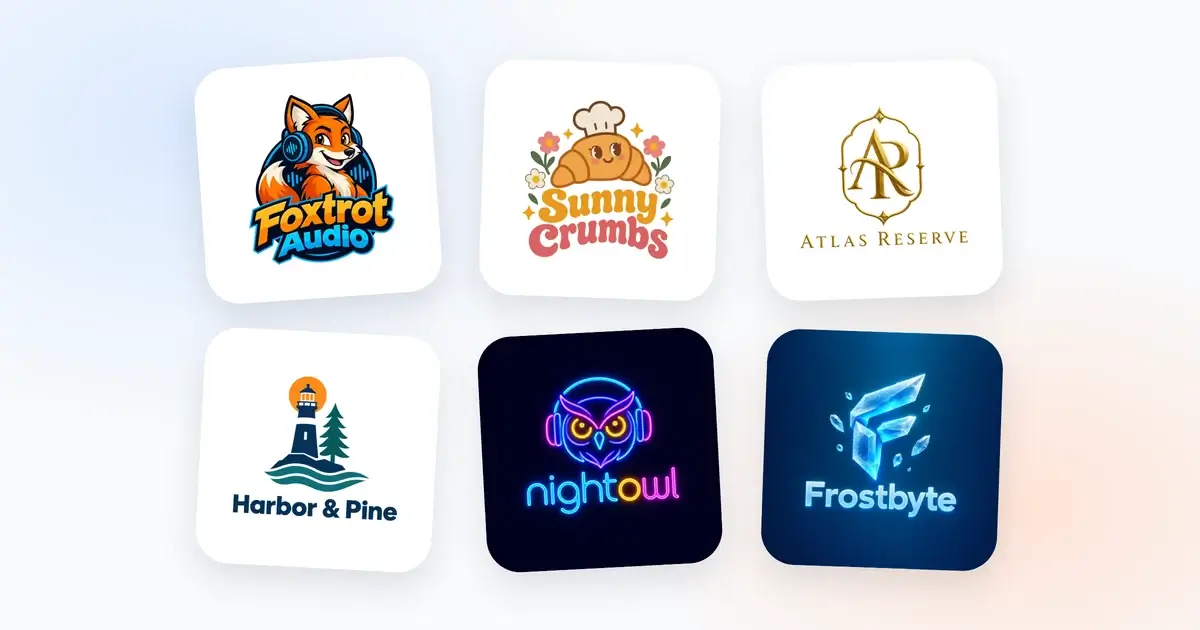
An AI logo generator can hand you a dozen logo designs in the time it takes to make a coffee. That part is real. What it can't do is read your mind, and that's where most first attempts go wrong: someone types their business name, presses the button, gets something bland and decides the whole idea doesn't work.
It does work. The results just depend a lot on what you give the generator to start with, and on how you judge what comes back. This guide walks through the whole thing from start to finish, the way we'd explain it to a friend who runs a small business and needs a logo by Friday. The screenshots come from the DepthLogo AI logo generator, but most of the advice holds for any tool of this kind.
Start with where your logo will live
Before you type anything, think about where people will actually see your logo. Not where you'd love to see it one day, but where it will spend most of its life.
A bakery's logo lives on paper bags, a sign above the door, stickers and an Instagram profile picture. A podcast's logo lives almost entirely as a small square on a phone screen. A software company's logo spends most of its time as a 16-pixel icon in a browser tab and as a small mark in the corner of a website.
This matters because it changes what a good result looks like. A detailed watercolor illustration can look lovely on a paper bag and turn into a blur as a profile picture. A simple mark with one strong shape survives being shrunk, printed in a single color or stitched onto a cap.
So write down the places your logo has to work, even if it's just a quick note on your phone. You'll come back to that note twice: when you pick a style, and when you judge the designs. While you're at it, note any colors you already use, like the paint on your shop front or the color of your packaging. They'll be useful in a minute.
Write a brief the AI can actually use
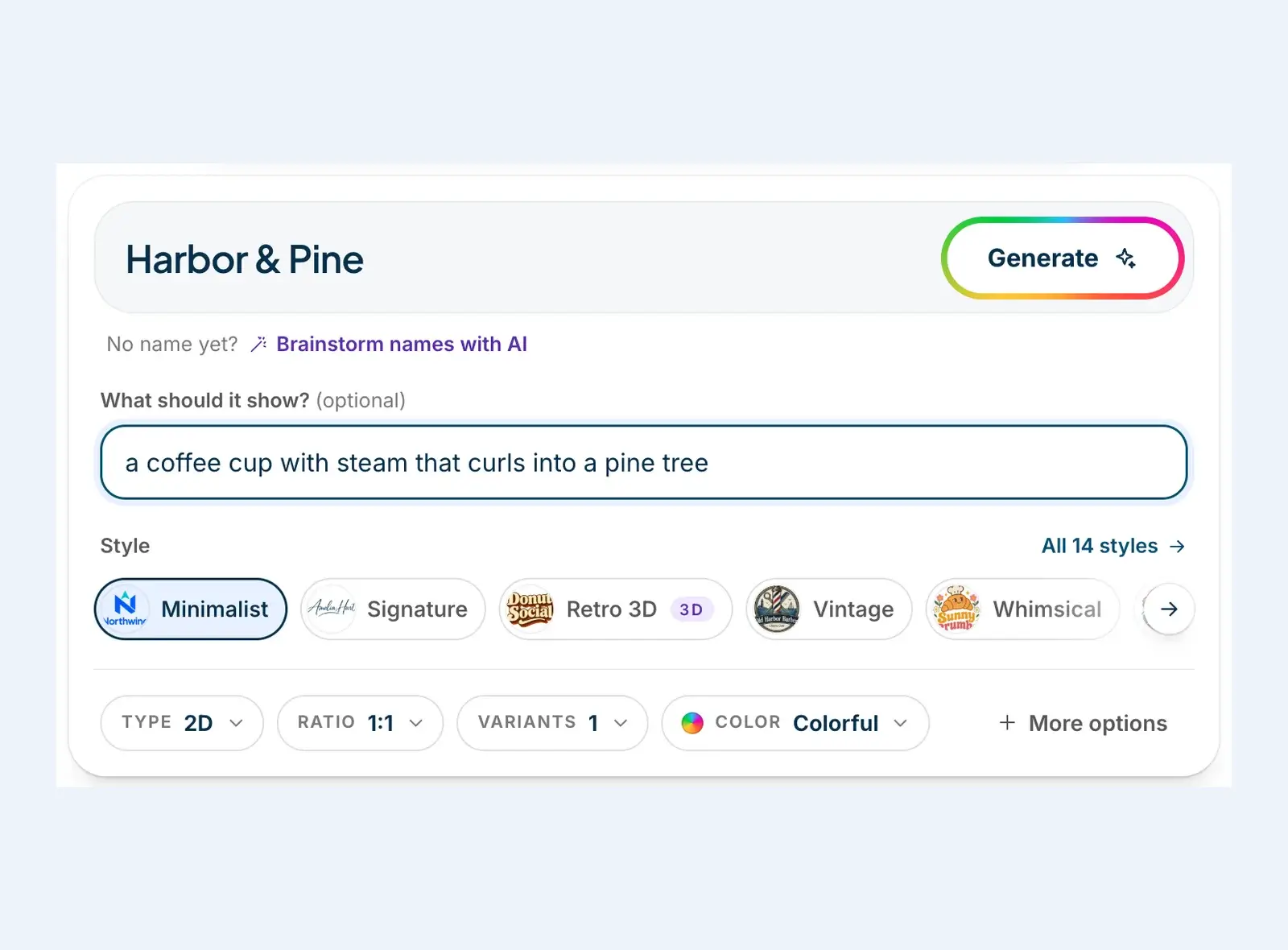
The brief is the handful of lines you fill in before you generate. In our generator that's your brand name, an optional slogan and a field that asks "What should it show?". That last field does more work than most people expect, so it's worth a few minutes of thought.
Start with your brand name written exactly as you want it to appear, with the capital letters, ampersands and spacing you use. "Harbor & Pine" and "harbor and pine" will give you two different logos. If your name is long, decide now whether the logo should show all of it or a shorter version people already use.
The slogan is optional, and for a lot of brands it's better left out. A tagline under a logo tends to become tiny text that nobody can read once the logo is small. If you do add one, keep it to a few words, and make sure it's one you'd still be happy with in five years.
Then comes the description. This is where vague words waste your turn. "Modern, professional and innovative" tells the generator almost nothing, because nearly every logo is trying to be those things. Concrete things work far better:
- a fox wearing headphones
- a coffee cup with steam that curls into a pine tree
- the letter K folded out of a single ribbon
You don't need to describe a whole design. One clear object or idea is enough, and the style you choose next decides how it gets drawn. If nothing comes to mind, you can leave the field empty. The generator will work from your name and lean more on lettering, which suits some brands very well.
Pick a style before you think about colors
Style is the biggest decision you'll make, bigger than color. It decides how the symbol is drawn, how thick the lines are, what kind of lettering goes with it and whether the logo looks flat or has depth.
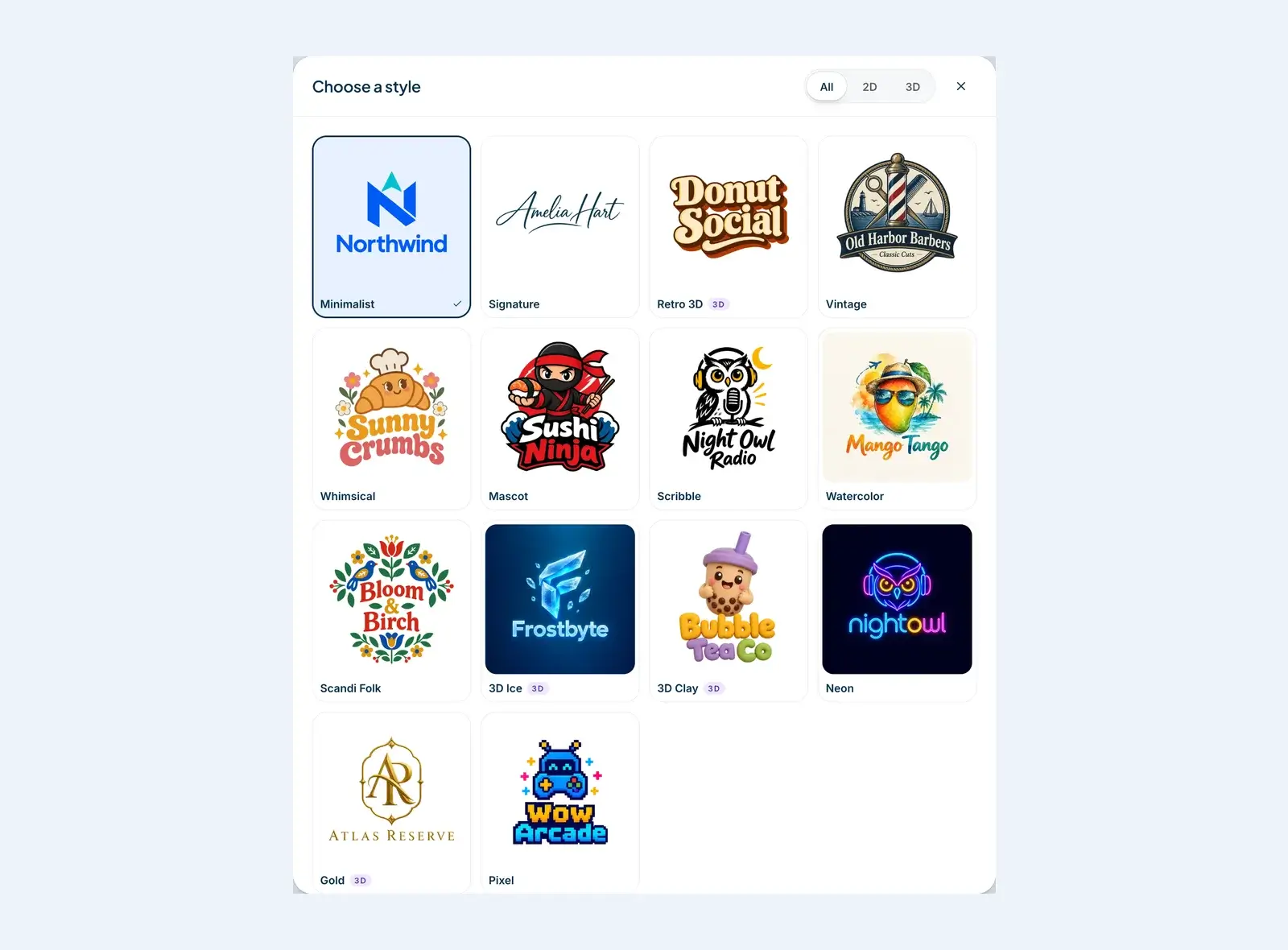
Our generator has 14 styles, and each one comes with an example so you can see what you're choosing. Some are quiet and classic, like Minimalist, Vintage and Signature, which turns your name into something that looks handwritten. Some have a lot of character, like Mascot, Whimsical, Scribble, Watercolor and Scandi Folk. And some are made to stand out on a screen: Neon, Pixel, Gold, Retro 3D, 3D Ice and 3D Clay.
A good way to choose is to look back at your note. If your logo has to work tiny or in one color, start with Minimalist or Signature. If you run a café with a playful feel or sell to kids, Whimsical or Mascot can carry a lot of personality on their own. If your brand lives mostly online, the 3D and Neon looks are eye-catching in a busy feed.
Most styles also let you choose between a flat look and one with depth. Gold, Retro 3D, 3D Ice and 3D Clay are always 3D, so for those the choice is made for you. Flat logos are easier to print, embroider and engrave. Logos with depth look rich on screens, but you'll want a simpler version for places like receipts or a rubber stamp.
There's a font style setting too, under "More options". You can leave it on Auto and let the style pick the lettering, or choose one yourself if you already know you want, say, a bold sans-serif or a formal script.
Choose colors on purpose
Colors are easier to change later than style, but they still shape your first results, so it pays to choose them on purpose rather than leaving them to chance.
If your business already has colors, use them. You can enter up to three of your own colors, and the designs are built around them. This is the quickest way to get a logo that looks like it belongs on your existing signs, menus or website.
If you don't have colors yet, start with one of the palettes, like Ocean, Forest or Earth, or leave it on Colorful and see what the style suggests. A couple of things to keep in mind:
- Fewer colors age better. Two or three is plenty for most logos, and every extra color makes printing more expensive.
- Your main color has to be readable where the logo goes. Very light colors disappear on white, and very dark ones disappear on black.
There are also Light, Dark and B&W options, and the first two set the background as well. B&W is worth trying even if you want color in the end. A logo that works in black and white will work almost anywhere, and it's the version you'll need for things like invoices, stamps and engraving.
Read the results like a designer would
When your designs come back, it's tempting to pick the prettiest one at full size and call it done. Designers look at them differently, and their habits are easy to borrow.
Shrink it first. Zoom out until the logo is about the size of a thumbnail, or simply step back from your screen. Does the main shape still read? Can you still tell what it is? Details that look great up close often turn into a smudge when they're small.
Then read the name letter by letter. We spell your name out letter by letter for the image model, which helps a lot, but read every letter yourself anyway. A missing letter is the kind of mistake you only notice once it's printed on a hundred mugs.
Next, picture it in one color. If you can imagine the logo printed in black on a white bag and it still makes sense, you're in good shape. If the idea only works because of a gradient or a glow, keep that in mind for the places where you can't use either.
Finally, give it a night. A logo that still looks right the next morning usually is.
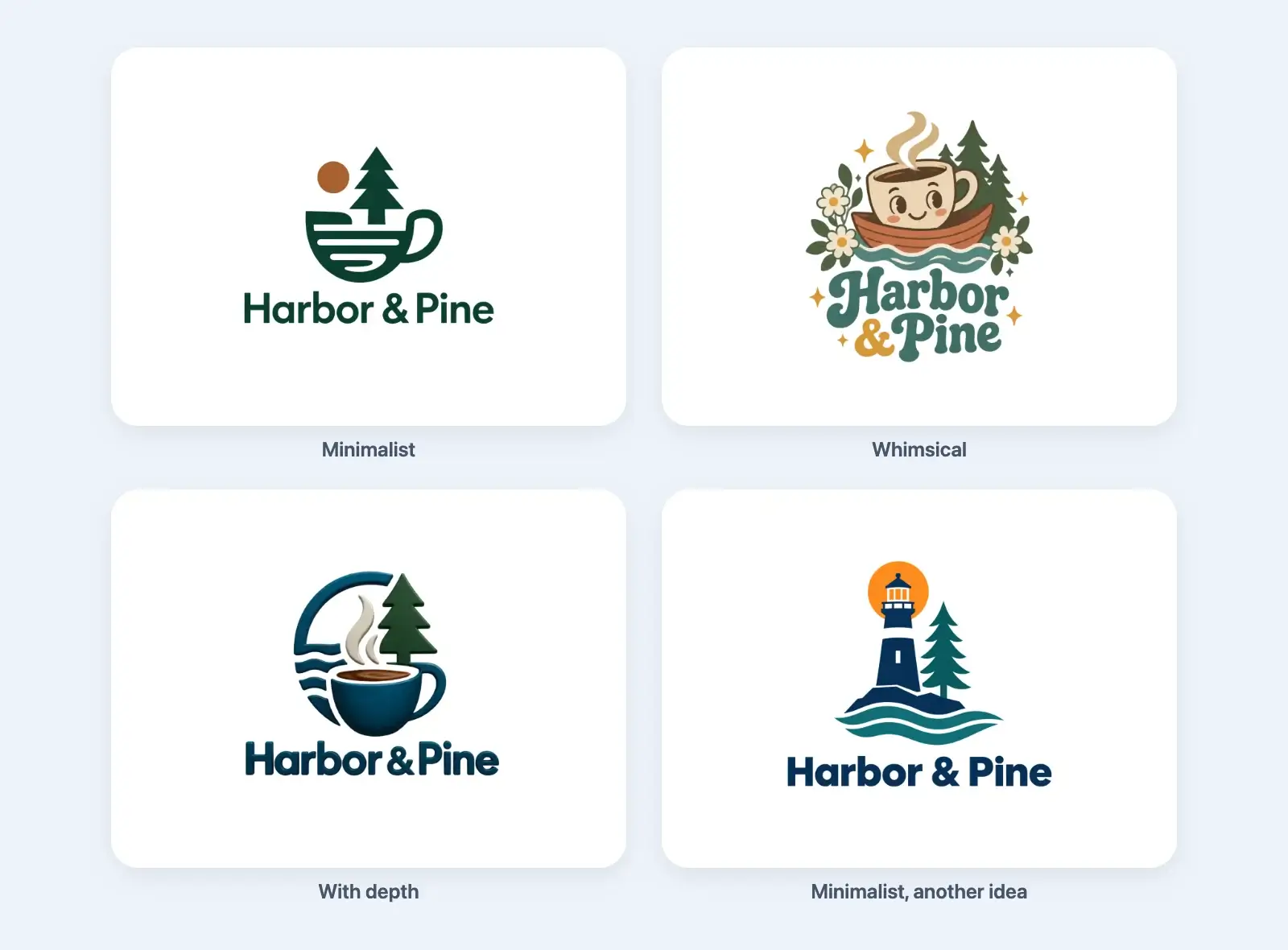
It also helps to generate more than once, and to change one thing at a time between rounds. Try a different style with the same brief, or the same style with a more specific description. You'll quickly learn which part of your brief is pulling the results in the wrong direction, and the second round is almost always better than the first.
Test your favorite before you commit
Previews in our generator carry a watermark until you buy, so there's no rush. Use that time. Put the preview next to the logos of other businesses in your area, or on a photo of your shop front, and see whether it holds its own.
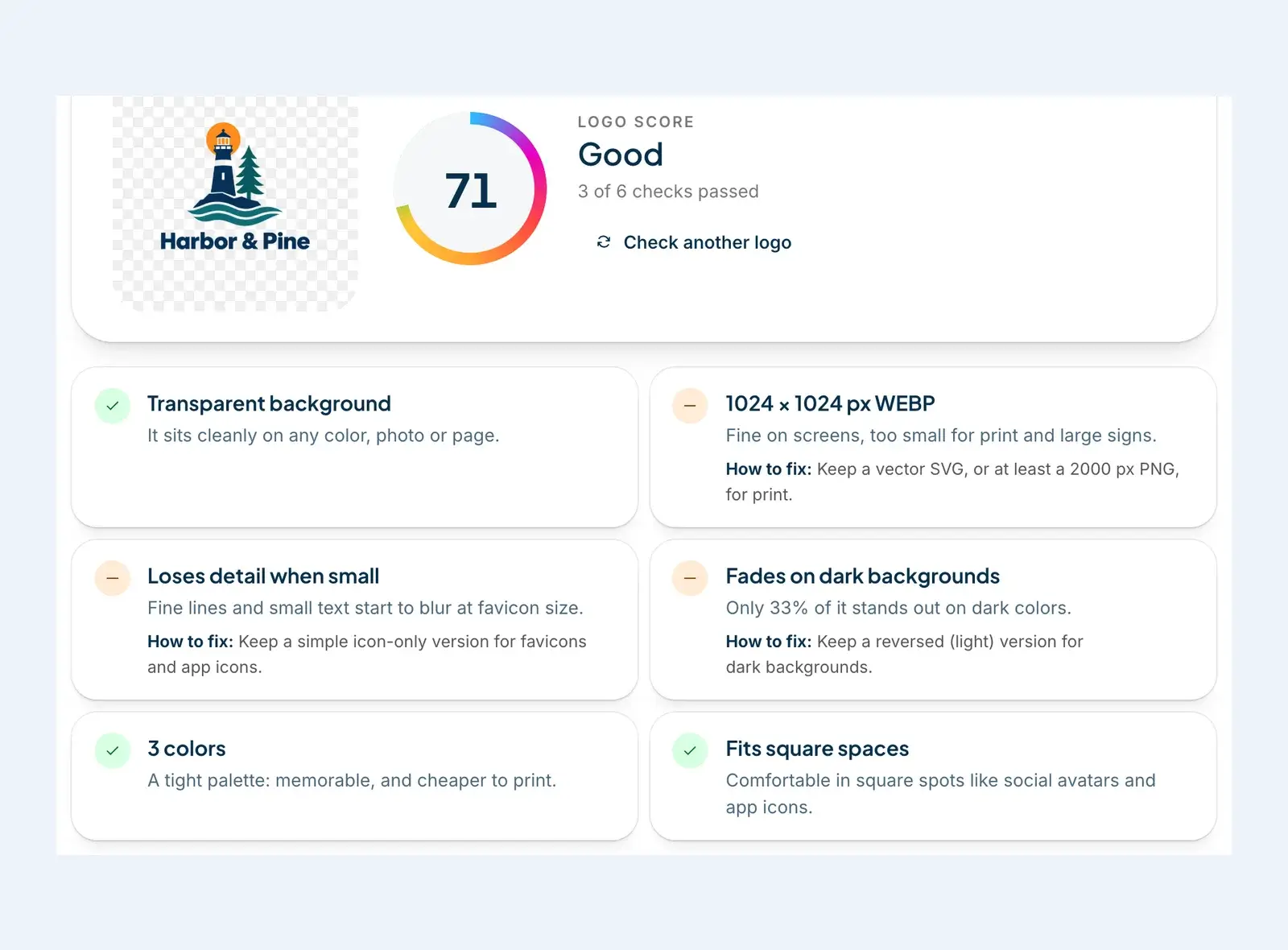
Our free logo checker helps with the less obvious problems. You upload a logo and it runs the checks a designer would run before sending files to a client: whether the background is really transparent, whether the file is sharp enough for print, how it holds up at favicon size, whether it fades on dark backgrounds, how many colors it uses and how it fits a square space like a profile picture. Each check says what it found, and when something needs work, how to fix it.
Get the right files for the job
This is the step people rush, and it's the one that causes trouble later. A logo isn't one file. It's a small set of files, each made for a different job.
A PNG is an image made of pixels. It's what you'll use on your website and on social media, and a PNG with a transparent background sits cleanly on any color. The catch is that pixels have a fixed size. Stretch a PNG across a large banner and it turns soft and blurry.
An SVG is a vector file. Instead of pixels, it stores shapes, so it stays sharp at any size, from a browser icon to the side of a van. Printers and sign makers will ask you for vector files. A vector also lets you change colors and text later without starting over. In DepthLogo you can open your SVG in our editor and do exactly that, as many times as you like.
Our PNG option gives you high-resolution transparent artwork, WebP files for fast websites, favicons, app icons and social profile images. The SVG option adds a print-ready PDF along with the vector itself. If you're not sure which one you need, look back at that first note: anything that will be printed, stitched or made very large needs the vector.
When an AI logo generator isn't the right tool
An AI logo generator is very good at giving you original options quickly. It's less suited to a few jobs, and it's better to know that up front.
If your logo has to follow strict rules, like matching an existing family of logos exactly, a human designer is the safer choice. The same goes if you're about to spend real money on a trademark in a crowded market. Have someone check that your logo is distinct enough before you print it on everything.
And if you'd rather control every element from the start, you might prefer to work from logo templates instead. A template gives you a finished layout, and you change the name, fonts, colors and icon yourself. Plenty of people do both: they use the generator to find a direction, then fine-tune a template that looks like it.
If you don't have a direction yet, browse some logo ideas from brands like yours before you write your brief. Ten minutes of looking at what you like, and what you don't, makes the brief much easier to write.
The short version
Here's the whole process on one screen:
- Write down where your logo will be seen.
- Give the generator your exact name and one concrete idea.
- Pick the style first, then the colors.
- Judge the results small, in one color and letter by letter.
- Test your favorite before you buy, and get a vector if anything will be printed.
That's really all there is to it. The generator does the drawing. Your part is to give it a clear brief and to be a picky judge of what comes back. When you're ready, open the AI logo generator and start with your name.
More AI logo generator guides
· 7 min read
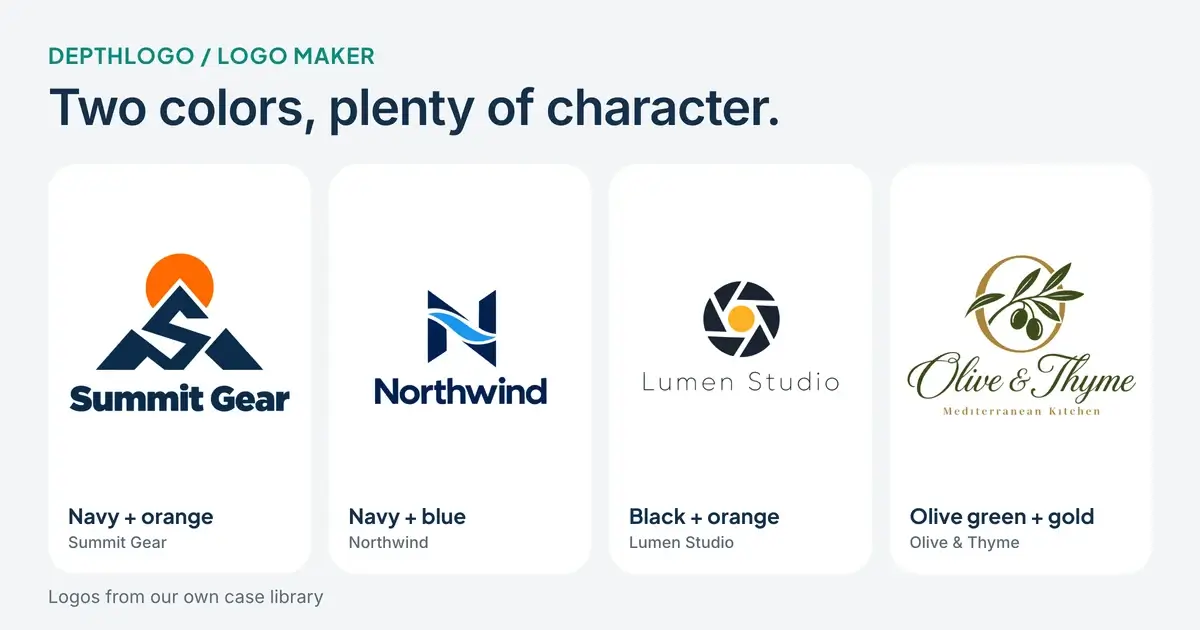
Logo Maker Color Guide: How to Choose Logo Colors
How to choose logo colors in a logo maker. How many colors to use, why contrast matters more than meaning, and how to test them before you download.
· 8 min read
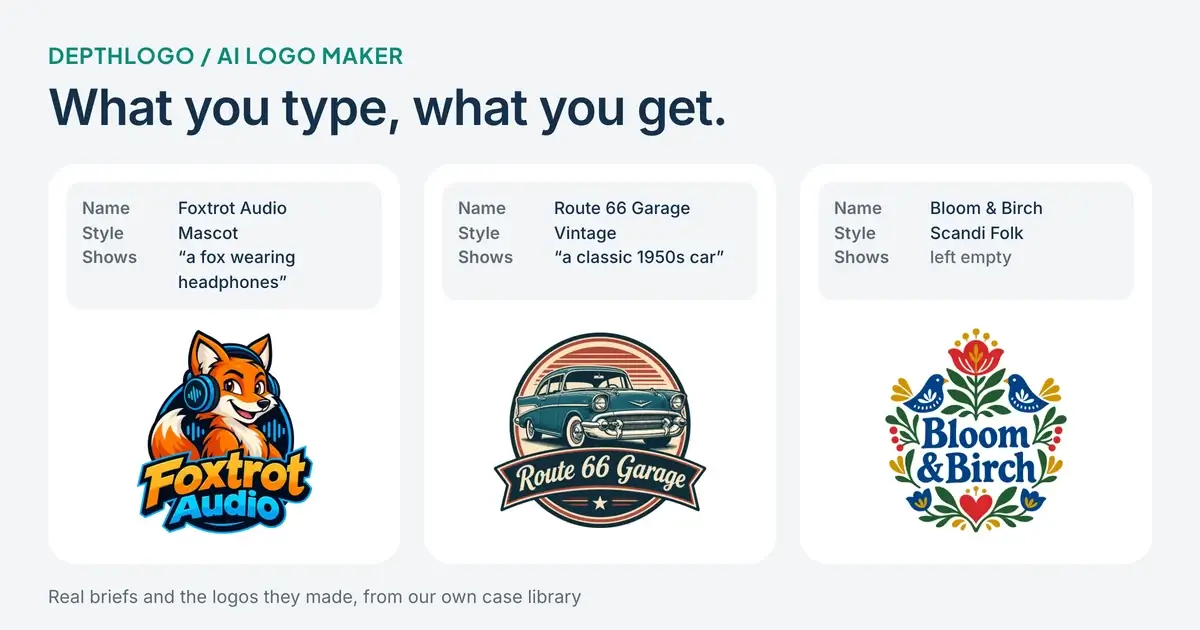
AI Logo Maker Examples: Real Briefs and Their Logos
Real briefs from our AI logo maker and the logos they made. See what a name alone gives you, when to describe a symbol, and how much the style changes.