Logo maker7 min read
Logo Maker Color Guide: How to Choose Logo Colors
How to choose logo colors in a logo maker. How many colors to use, why contrast matters more than meaning, and how to test them before you download.
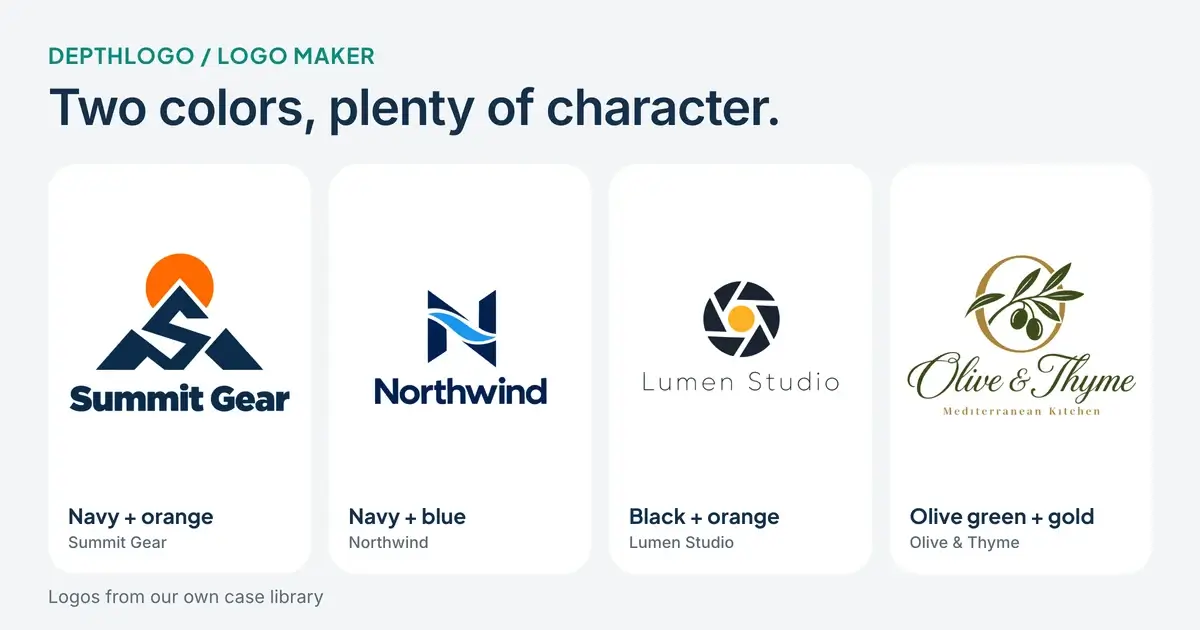
Every logo maker hands you the whole color wheel, and that's exactly the problem. With every shade one click away, it's easy to keep adding: a second blue, a touch of gold, a gradient because it looked nice in the preview. Most color trouble in logos doesn't come from picking the wrong hue. It comes from using too many colors, and from letters that don't stand out from whatever they're placed on.
This guide is about choosing colors on purpose. We'll start with how many to use, then look at what colors do and don't say, and spend most of the time on the part people skip: testing. The examples are real logos from our own case library, plus screenshots of the tools we use to check them.
Decide how many colors before you decide which
Start with a number, not a shade. Most strong logos use one main color and one accent, sometimes a third for small details. The main color carries the name and the bulk of the symbol. The accent marks a single spot you want people to notice first.
The four logos on the cover show how far two colors go. Summit Gear is navy with an orange sun behind the mountain. Northwind is navy with one bright blue wave cutting through the N. Lumen Studio is black with a small orange center in the camera aperture, and Olive & Thyme is olive green with a gold ring. In each case your eye goes straight to the accent, because there's only one.
There's a practical reason to keep the count low, too. On a screen, extra colors cost nothing. In print they add up: screen printing needs a separate screen for every color, embroidery a separate thread, and some printers charge by the number of inks. A logo that works in two colors is simply easier and cheaper to put on a T-shirt, a mug or a shop window.
What colors say, and what they don't
You'll find plenty of charts that tie each color to a feeling: blue for trust, green for nature, red for energy. There's something to it, in that you'll notice a lot of blue among banks and software companies and a lot of green among food and outdoor brands. But these associations are loose, they vary between cultures, and no color makes a customer trust you on its own.
A more useful question is what the businesses around you already use. Open a few competitors' websites and note their colors. If every accountant in your town is navy, a navy logo tells people what you do at a glance, and a warm terracotta one makes you easier to remember. Either can be the right choice, as long as it's a choice.
Then think about where the logo will spend most of its time. A café whose cups, bags and signs are kraft brown will want colors that look good on brown. An app that lives on phone home screens needs a color that stands out among other app icons. The surroundings matter more than any chart of color meanings.
Contrast matters more than the color itself
If people can't read your name, the color doesn't matter. Contrast is the difference in lightness between the letters and what's behind them, and it decides whether a logo works on a busy street sign, a dim phone screen or a photo.
Our free logo checker shows your logo on several backgrounds at once, which is the quickest way to see contrast problems. Here's what it shows for the Sunny Crumbs sample, a cheerful bakery logo with yellow and pink lettering.
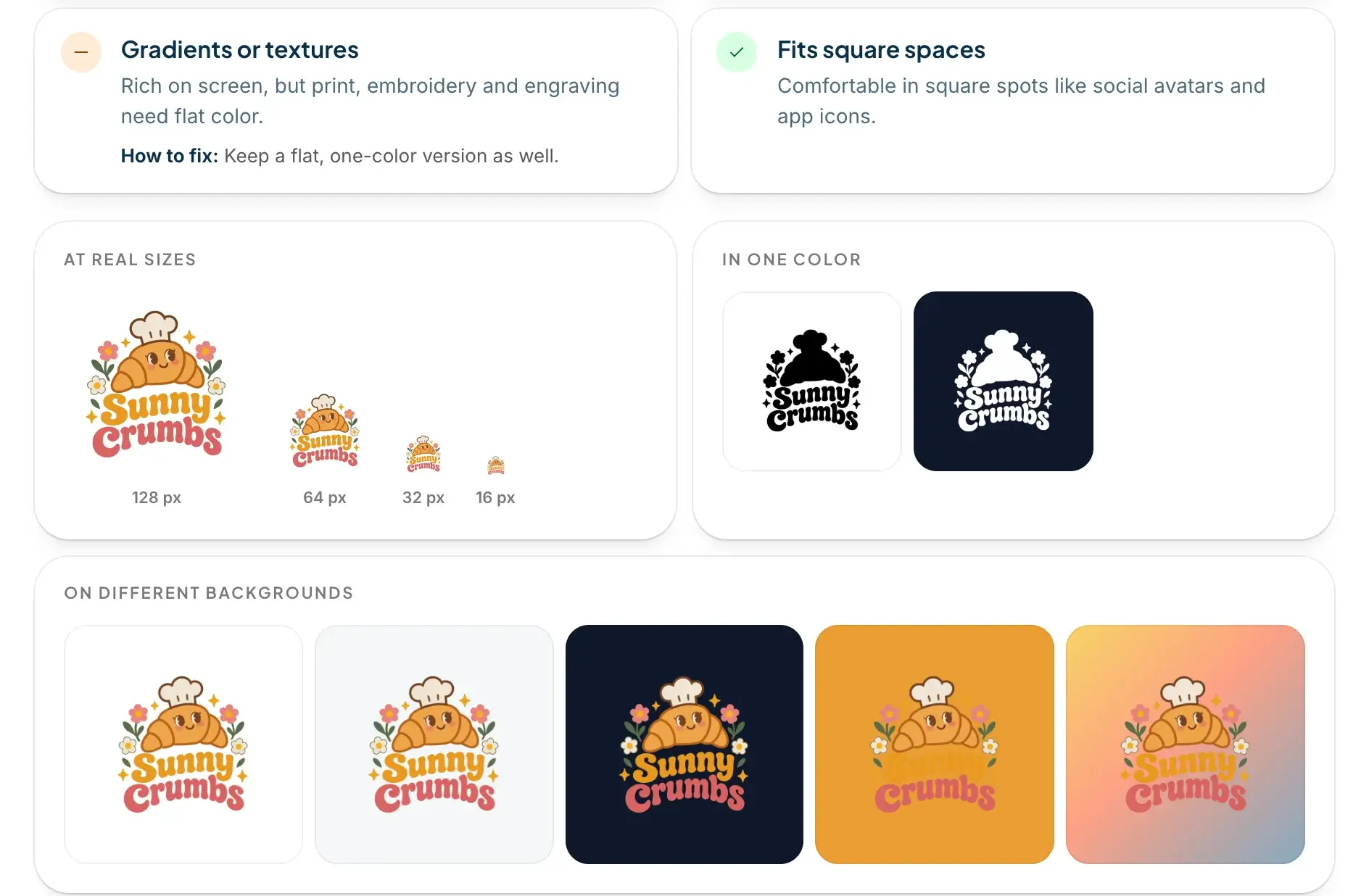
On white, light gray and dark navy, the logo reads well. On orange, the yellow "Sunny" nearly vanishes, because yellow and orange are close in lightness. If Sunny Crumbs used orange boxes or an orange storefront, that would be a real problem, and the fix would be a version with darker lettering for orange surfaces.
A quick test you can do anywhere: look at your logo in black and white, or squint at it. If the name blends into its background when the color is gone, the contrast is too low.
Plan the one-color and dark versions now
Sooner or later your logo will have to work in a single color. Rubber stamps, embroidery, engraving and receipt printers all allow one ink, and many printed promotional items do too. It's much easier to design for this from the start than to discover later that the logo depends on a gradient.
The same goes for dark backgrounds. A dark website header or a black T-shirt needs a light version of the logo. If your main logo is navy, plan a white or cream version now, so you're not improvising when the first dark surface comes along.
Our AI logo generator has color themes for both. The three Harbor & Pine logos below came from the same brief, with only the Color setting changed: Colorful, Dark (made for dark backgrounds) and B&W.
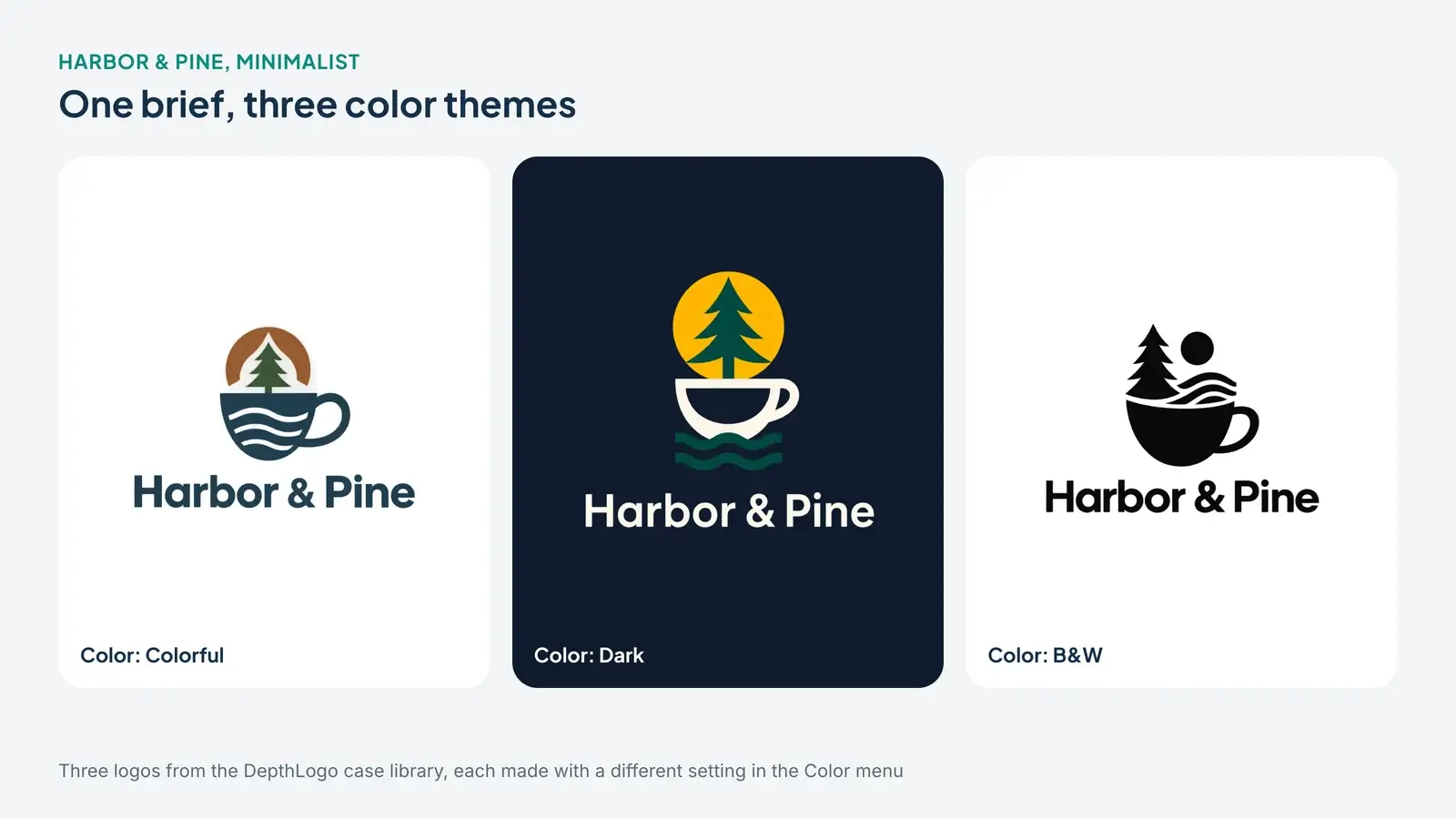
Note that each of these is its own design. The AI draws a new logo for each run, so the B&W version isn't the colorful one with the color removed. If you need matching versions of one logo, buy the SVG and recolor it in our editor, or start from a template, where the one-color versions come with the download.
Choosing colors in DepthLogo
How you pick colors depends on which tool you start with.
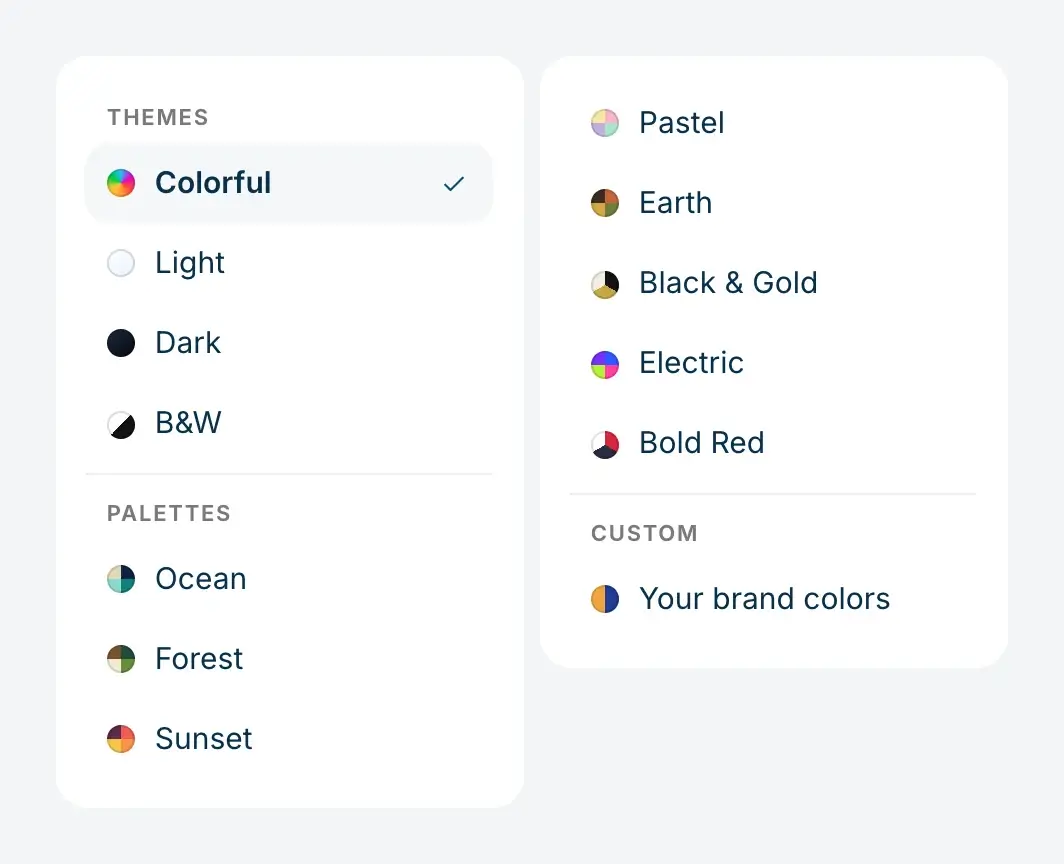
In the AI logo generator, open the Color menu. Themes set the overall feel: Colorful, Light, Dark or B&W. Palettes are ready-made color sets with names like Ocean, Forest, Sunset, Earth and Black & Gold. Under Custom you can enter up to three of your own brand colors, which is the one to use if you already have colors on a website or shop front.
In our template logo maker, you start from a design whose colors already work together, and change them in the editor. Select the symbol and you get one swatch for each of its colors; change a swatch and that color changes everywhere in the symbol, so a two-tone design stays two-tone. Text has its own color, and the background takes a preset or any color you pick. If you'd rather browse by palette first, the logo templates page has a Color filter.
A good habit in both tools: pick your main color first and leave the accent for last. It's much easier to find one accent that works with a settled main color than to juggle three colors at once.
Test your colors before you download
Once you have a favorite, run it through the logo checker before you buy anything. It counts your logo's main colors and ignores tiny specks. Up to three colors passes; more than that, or gradients and textures, gets a note that it's worth a look, as with Sunny Crumbs above. It also shows the logo at real sizes, in one color and on light, dark, colored and gradient backgrounds.
Read the backgrounds row with your own surroundings in mind. The checker can't know that your shop sign is orange or your packaging is kraft brown, so picture the logo on the colors you'll actually use. If one of them is close to a color in your logo, plan a version for it.
Previews in DepthLogo carry a watermark, and you only pay when you download, so there's no cost to trying a few color options first. Fonts and colors work together, too, so if you're still deciding on lettering, our guide on how to choose a font for your logo covers the other half of the picture.
Mistakes we see often
The most common one is using too many colors because each one looked nice on its own. If your logo has five colors and a gradient, try removing colors one at a time until something important is lost, then put that one back.
Another is pale lettering. Light pastels look soft and friendly on a white artboard and then fade away on a phone in sunlight. If you love a pastel palette, keep the name in a darker shade and let the pastels color the symbol.
A third is matching the logo to a single setting. A logo designed on a dark website header may look heavy on white business cards, and one designed on white may disappear on a dark header. Plan for both from the start.
Finally, people forget the one-color version until a printer asks for it. You'll need it eventually, so make it part of choosing your colors, not an afterthought. If you're using templates, our step-by-step guide on how to use a logo maker shows where each color setting lives in the editor.
The short version
Choose how many colors before you choose which: one main color and one accent is plenty. Look at your competitors and your own surroundings rather than at charts of color meanings. Check that the name stands out on every background you'll use, plan a one-color and a light version from the start, and test it all in the logo checker before you download. Looking for a starting point? Our logo ideas gallery shows how other brands balance their colors.
More Logo maker guides
· 8 min read
Logo Size Guide: Dimensions for Web, Social and Print
What logo size to use on your website, favicon, social profiles, email and print, when a vector beats a PNG, and a cheat sheet to keep.
· 7 min read
Logo Creator Tips: How to Choose a Font for Your Logo
How to choose a logo font in a logo creator. What bold, thin, serif and script letters say about a business, how to test them small, and when to stop at one.
· 10 min read
Free Logo Maker: What You Can Make Without Paying
What a free logo maker really gives you, a checklist for judging one, and how to design a logo for free on DepthLogo and pay only for the files.