Logo checker7 min read
Logo Checker: What to Fix Before You Use Your Logo
Read a logo checker report without chasing the score. Find out which warnings need a new file, an extra version or a closer look at the design itself.
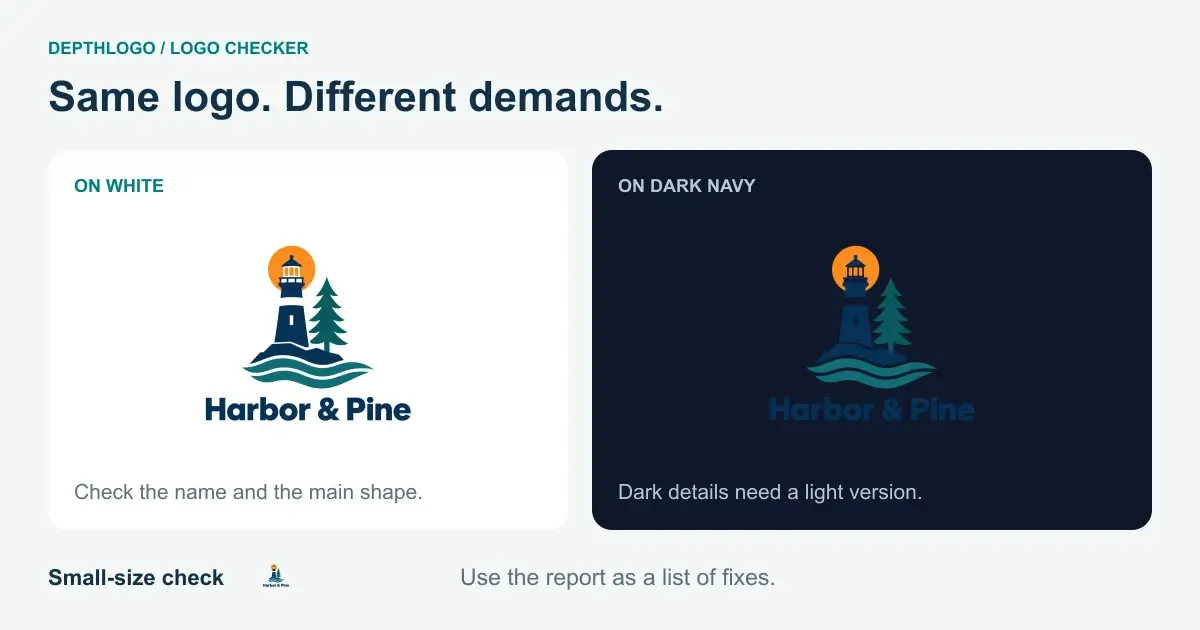
A logo checker is most useful when you've found a design you want to keep. You run the file through it, see a score and a few warnings, and suddenly wonder whether you chose badly. Usually, the next step is much smaller than choosing a new logo. You may need a transparent export, a light version or an icon without the name.
This follows our guide to choosing a logo from a logo generator. That article helps you settle on a direction. Here we'll check what happens when the chosen design leaves the preview and goes onto your website, packaging or profile picture.
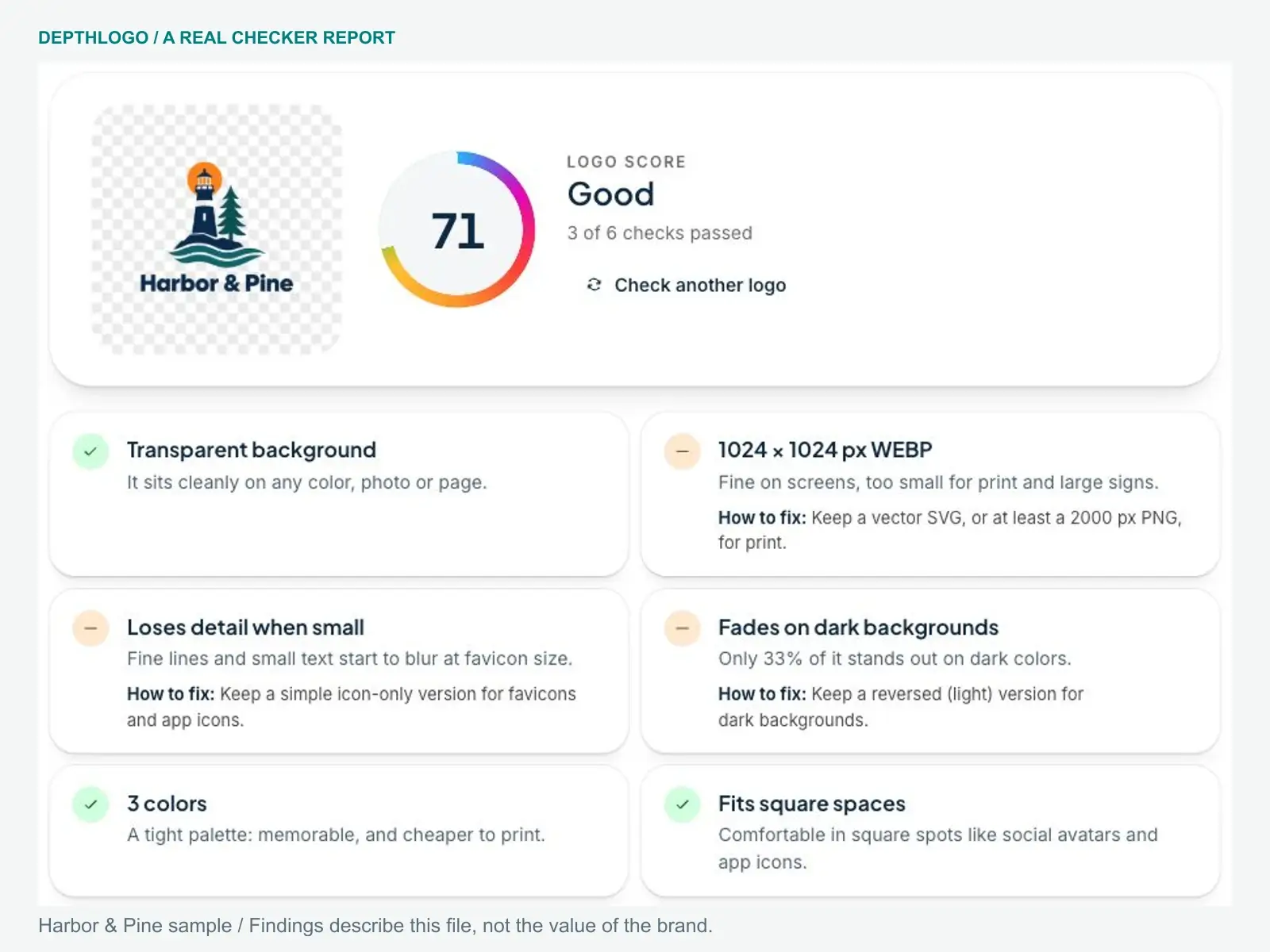
We'll use the Harbor & Pine lighthouse sample in our free logo checker. You can open that sample yourself without making an account or generating anything. The point is to read the findings and decide what to fix, rather than treat the score as a vote on your taste.
Check the file you intend to use
A screenshot and a downloaded logo aren't the same file. The screenshot includes whatever background was on your screen, and its size depends on how large the preview happened to be. A warning about that screenshot may say very little about the artwork you'll eventually download.
For a proper file check, use the original PNG, WebP or SVG you plan to put on the website. Our checker also accepts JPG, though that format can't have a transparent background. The tool reads and checks the file in your browser; it doesn't upload your logo. Files can be up to 10 MB.
If you're still deciding whether to buy a design, the preview can help you judge its shape and spelling. Keep that separate from checking the final export. A watermarked preview isn't a substitute for the clean files or their license.
Name the file clearly before you begin. "Harbor-Pine-main-dark-text.png" is easier to find again than "logo-final-final-2.png", especially once you have a light version alongside it.
Read the findings before the number
The checker runs six checks: transparency, file quality, small sizes, contrast, colors and shape. Each gets a pass, a warning or a failure, and the results contribute to a score out of 100. Small sizes carry the most weight. Colors and shape carry less.
That score is a useful summary of this particular file. It isn't a measurement of whether the design suits your business. A long wordmark can lose points for fitting poorly in a square and still work well across the top of a website.
The Harbor & Pine sample below scores 71. The report flags its 1,024-pixel file, detail lost at small sizes and fading on dark backgrounds. Those are specific jobs to deal with, not a reason to abandon the lighthouse idea.
Read every explanation and its suggested fix. Then sort the tasks into things you can solve by exporting again, things that need another version, and things that need a design change. This stops a missing transparent background from becoming an unnecessary redesign.
Fix the background before changing the colors
If the transparency check finds a solid background, it tells you the color it found. That's your first clue when a logo arrives with a white box around it.
Try the image on a contrasting background. A genuinely transparent area lets that background show through. A painted checkerboard is still a picture, even if it resembles the pattern design software uses to show transparency.
The cleanest fix is another export from the source design with transparency enabled, or the vector version if you have it. Saving a JPG as a PNG doesn't remove the JPG's background. The new extension changes the container, not the pixels inside.
Don't confuse this with a logo intentionally sitting on a colored square. That can be the right file for an avatar. Keep it for that use and keep a transparent version for places where the logo needs to sit directly on a page or a bag. One file doesn't have to do both jobs.
Match file quality to the job
For pixel images, the checker reads the image dimensions. Below 800 pixels on the long side fails; 800 to 1,499 gets a warning; 1,500 or more passes. JPG still gets a warning because it can't be transparent.
Those thresholds are a quick screen, not instructions for every printer. A file that passes can still be too small for a large sign. Tell the supplier the finished size and ask which file they need before you order anything.
For SVG files, the checker looks for a different problem: a file that wraps a pixel picture instead of drawing vector shapes. Changing a filename to .svg doesn't turn pixels into curves, and enlarging that picture still makes it blurry.
If you have a real vector, keep it as the starting file for print. If you only have a small PNG, go back to the original source for a larger export or a vector. Resizing it upward creates a bigger file without recovering the missing detail. Our guide to logo file formats explains which versions to send to different people.
Let the small-size preview change the version
The checker shows your artwork at 128, 64, 32 and 16 pixels. Look at those previews without zooming in. They're meant to show the space available, including how little room a browser tab gives you.
The small-size check estimates how much detail disappears at 32 pixels. It doesn't read your name. A passing result still needs your eyes, especially with decorative lettering or a small slogan.
With Harbor & Pine, compare the main landmark with the lettering underneath it. At a tiny size, the full name asks more of the space than the symbol does. That suggests an icon version, rather than shrinking the full logo harder.
A separate icon needs to come from the design, not an arbitrary crop through the middle. If the logo has no useful symbol, an initial may be a better starting point. For a template with a symbol and a name, our downloads include them separately. For a detailed AI illustration, don't assume the drawing can be split neatly; plan a simpler companion if it needs one.
Make a light version for dark places
The contrast check measures how much of the logo stands out on white and on dark navy. For artwork with its own solid background, it tests the design against that background. It compares lightness, so two different hues can still be difficult to tell apart.
A dark name on white may look fine and almost disappear in a dark website header. The answer is often a reversed version: usually white artwork with no background. It belongs beside the main logo in your files.
Use the checker's background previews to spot the problem, then try the actual color of your website or packaging. Passing on navy doesn't promise legibility on every photograph. A busy photo may need a quiet panel behind the logo even when the colors contrast well.
Our logo maker lets you recolor template parts. An AI logo bought as SVG can be recolored in our editor too, though a shaded illustration is more involved than a flat symbol. Don't turn every piece white without looking at what happens to the gaps between them.
Treat color and shape warnings as production notes
A color warning can mean several main colors, a gradient or a texture. That may be fine for a website. It deserves a conversation before embroidery, engraving or printing in a single ink.
The one-color preview helps you see what depends on shading. If important parts merge, ask for a simplified version in which the shapes stay separate. A grayscale picture isn't the same thing: it still uses shades, while a rubber stamp has ink or no ink.
A shape warning needs the same practical reading. A wide logo fits a wide header, but shrinks inside a square avatar. Keep the wide one for the header and make a stacked or symbol-only version for the avatar. Don't squash the artwork horizontally to raise the score; that distorts the letters and the symbol.
If your chosen design has depth, the 3D logo maker guides explain why preserving a rich screen version and making a flat companion are separate jobs.
Finish with the checks software can't make
Once the file warnings have a fix, read the name yourself, letter by letter. Ask someone unfamiliar with it to read it too. The checker measures the image; it doesn't proofread the brand name or decide whether the symbol suggests the right business.
Print a small sample on ordinary paper. Put the logo into a rough version of its most common setting. Check the real background and the surrounding text, since a logo that works alone can still feel crowded in a header. These checks don't need an expensive mockup.
Keep any questions about ownership or trademark rights separate from the report. The checker doesn't search trademark registers or certify that a logo is available to register. A high score doesn't answer those questions.
Finally, check each version for its own job. The transparent main logo, the white version and the tiny icon may produce different findings. That's expected. Give each a clear filename and keep the source files together so the next person uses the right one.
If the design itself keeps failing in its main setting, return to the logo generator shortlist guide with that specific problem in mind. Otherwise, fix the file or add the missing version, check it again and get on with using your logo.