Logo makerUpdated 8 min read
How to Use a Logo Maker: A Step-by-Step Guide
How to use a logo maker to design your own logo, from picking a template worth editing to making the name, fonts and colors yours and downloading the files.
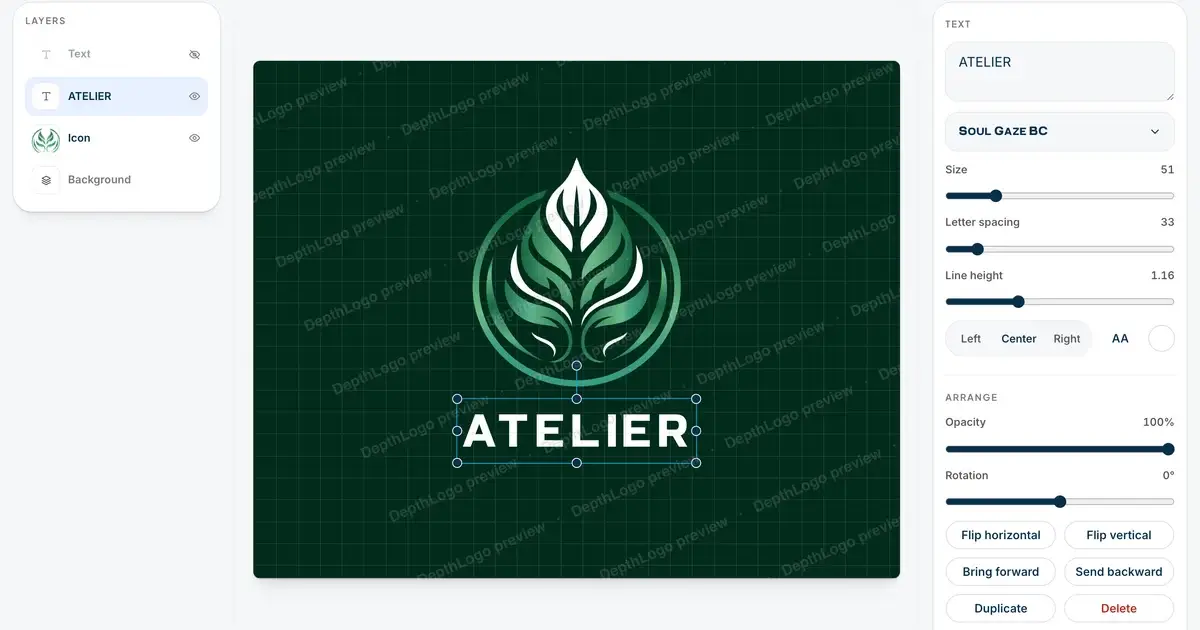
A logo maker is the do-it-yourself route to a logo. Instead of describing what you want and waiting for someone to draw it, you start from a finished design and change it until it's yours: the name, the fonts, the colors, the symbol and the spacing. It's quick, it costs nothing to try, and you stay in control of every detail.
That control is also the catch. With hundreds of templates in front of you and every setting a click away, it's easy to fiddle for an hour and still not be sure you've got it right. This guide is the shortcut we wish everyone had: how to pick a template worth editing, what to change first, and how to tell when you're done. The screenshots come from the logo maker on DepthLogo, but the steps work in most tools like it.
Type your name before you look at templates
Most logo makers open on a wall of designs that all say "Your Brand". Try not to browse them like that. A template that looks great with a short placeholder can fall apart with your real name, and one that looks plain with the placeholder can suddenly come alive with yours.
So put your brand name in first, written exactly the way you write it, and add a slogan only if you're sure you want one. On DepthLogo every template is redrawn with your name, so what you see is close to what you'd get. In some layouts a longer name wraps onto two lines, and it's much better to spot that now than after you've fallen for a design.
There's another reason to start with the name. Our search reads it for meaning as well as for words. Type "Harbor & Pine" and templates with anchors, waves and pine trees move up the list, because those are the things the name suggests. While it reads a new name, the page tells you so, and the results sharpen a moment later. Your name ends up doing part of the searching for you.
Narrow it down to a few candidates
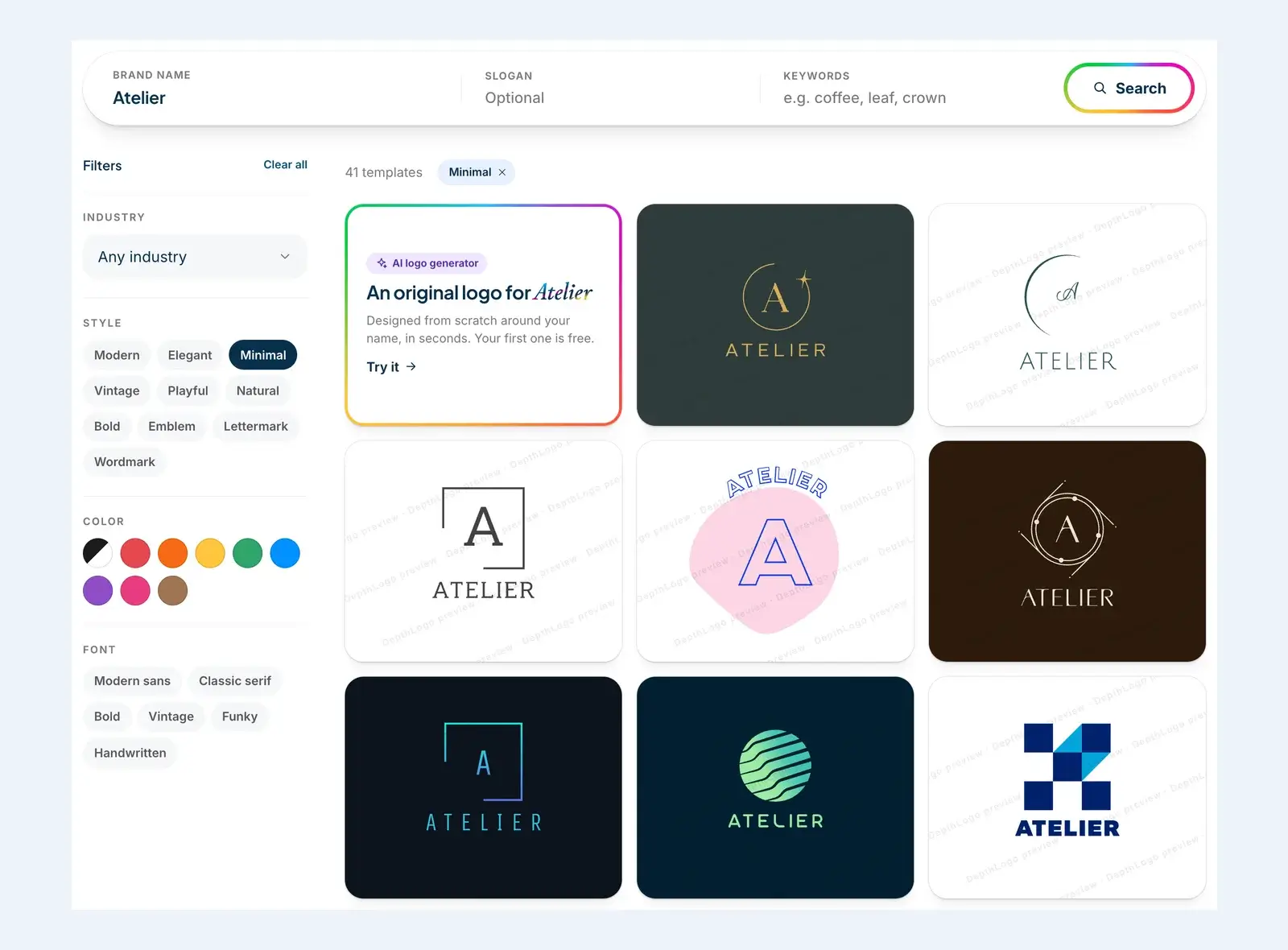
Next, cut the list down. Filters are faster than scrolling, and they're easy to undo, so don't be shy with them.
- Industry brings forward designs made for businesses like yours, from bakeries to law firms.
- Style sorts by feel: modern, elegant, vintage, playful, nature, minimal and bold, plus emblems, lettermarks built from your initials, and wordmarks that are just the name, set nicely.
- Color and font narrow it further if you already know you want something serif, handwritten or heavy.
If you have a particular picture in mind, type it into Keywords, like "coffee", "leaf" or "crown". Simple words for things you can draw work best. Under the results you'll also find recommended searches, which are a handy way to find symbols you hadn't thought of.
Aim for three or four candidates rather than one. Open them side by side and compare them. A few templates next to each other teach you more about what you want than staring at a single one ever will.
Judge a template by its bones, not its colors
When you compare your candidates, ignore the colors for a moment. Colors are the easiest thing to change in the editor, and they're often what makes a template look good or bad at first sight. Look at the structure instead.
Start with the layout. Is the symbol above the name, beside it, or is there no symbol at all? Think about where the logo will sit most of the time. A wide website header suits a symbol beside the name, while a square profile picture or an app icon suits one stacked on top.
Then look at the symbol. Does it say something about what you do, or at least not say something wrong? A dental clinic with a coffee bean is a strange place to start, however good the colors are.
Then the lettering. Does the style of the type fit the feel of your business? A heavy, rounded font comes across as friendly and casual. A thin, elegant serif feels calm and a little more expensive. Neither is better; they just send different signals.
Finally, shrink it. Zoom out, or lean back from your screen. If a template turns to mush when it's small, editing won't save it.
A template that gets through all of that is worth your time in the editor.
Make it yours in the editor
Open your favorite and you'll see the logo in the middle, its layers on one side and the settings for whatever you've selected on the other. You don't need to learn every control. Most good edits come down to a few changes made carefully, in the right order.
Get the text right first
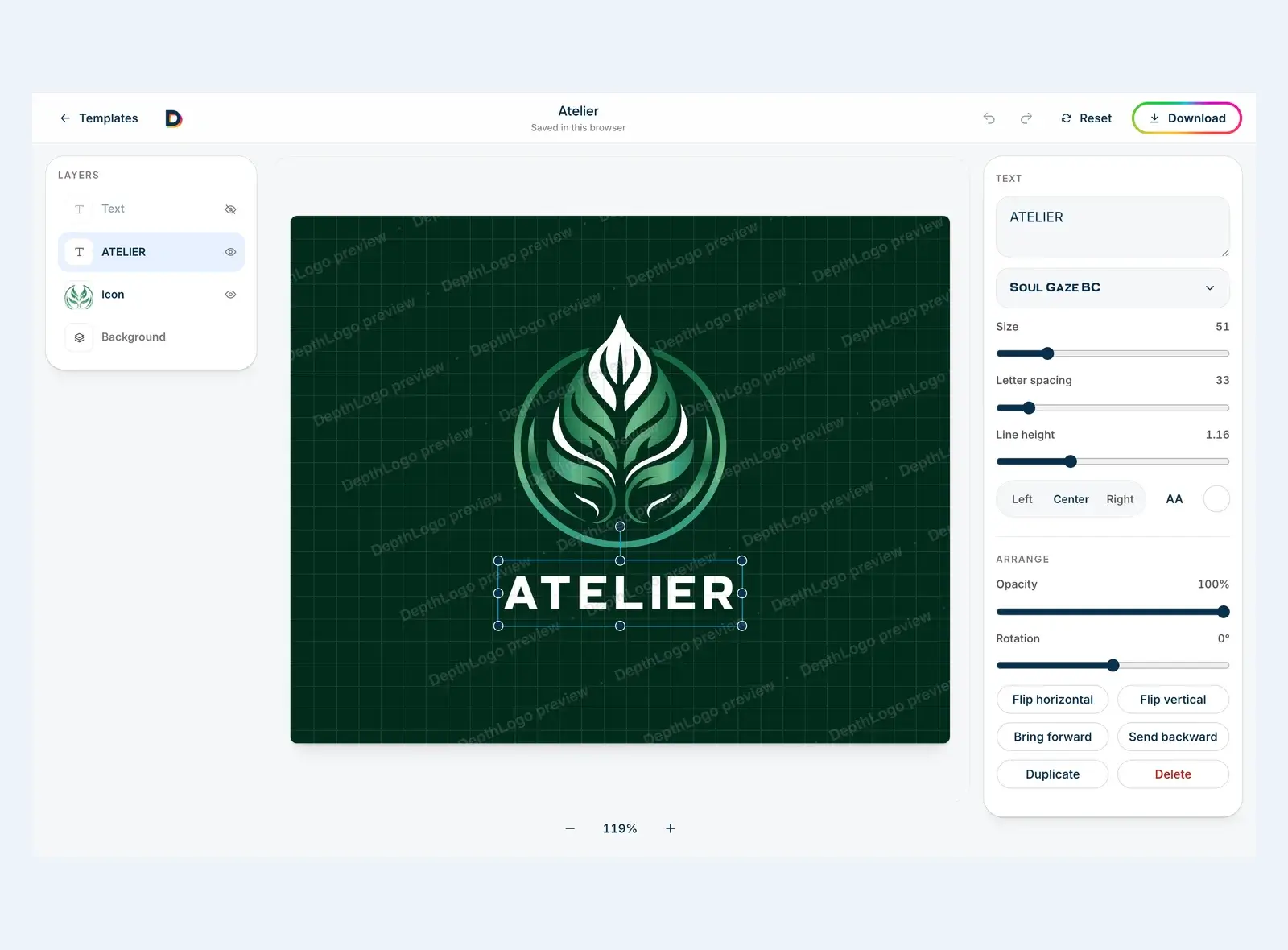
Click the name and look at the text settings. You can change the font, the size, the letter spacing and the line height, set the alignment and switch to capitals. Double-click the text on the canvas and you can type straight into it.
A few habits keep lettering looking professional:
- Use two fonts at most, one for the name and one for the slogan. Often one font in two weights looks even better.
- Add a little letter spacing when the text is in capitals. It looks more deliberate and reads better at small sizes.
- Keep the slogan clearly smaller than the name, but not so small that it disappears at a glance.
Then the colors
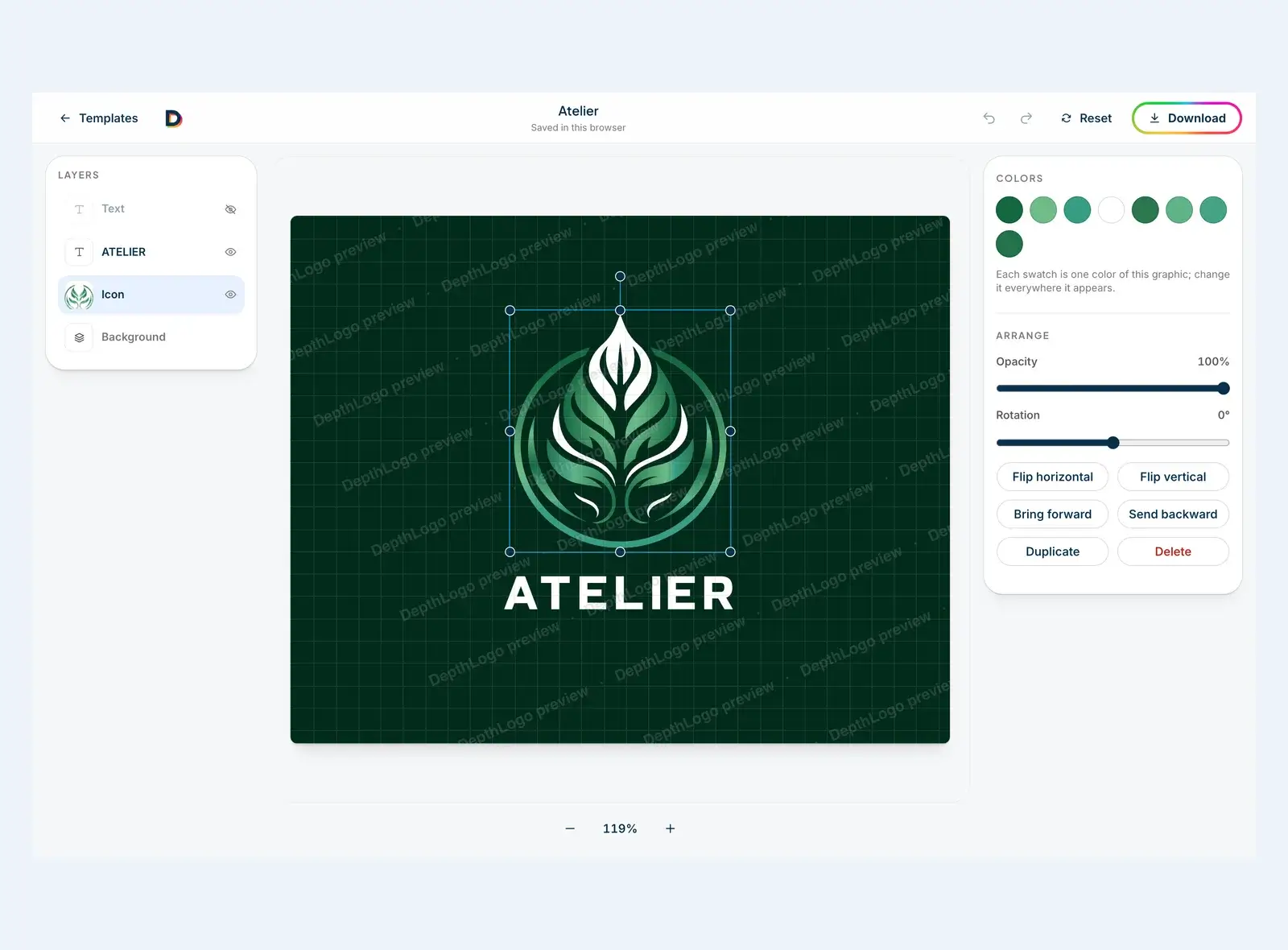
Click the symbol or a shape to see its colors. Each swatch is one color of that graphic, and changing a swatch changes that color everywhere it appears in the graphic, so a two-tone symbol stays two-tone. You can change the background as well. Your download includes a transparent version either way, so the background only matters for the versions that show one.
If you have brand colors, use them. If you don't, take the template's colors as a starting point and change one at a time. It's surprisingly easy to go from nice to busy by changing everything at once. Our logo maker color guide covers how many colors to use and how to test them.
Finally, spacing and position
Now move, resize or rotate the symbol and the text until the spacing feels even. Two quick checks help here. Is the gap between the symbol and the name about the same as the gap between the name and the slogan? And does the whole logo look centered, not just measure as centered? Round shapes and pointed letters can fool the eye, so trust what you see over the numbers.
If you go too far, there's undo, and a reset button that takes you back to the template as it was. The editor also keeps your work in this browser, so you can close the tab and pick up where you left off.
The mistakes we see most often
Most logos that look homemade got that way through a handful of small decisions rather than one big one. These are the ones that come up again and again:
- Shrinking the symbol until it's decoration. If the name is ten times bigger than the symbol, the symbol stops doing its job; keep them in proportion.
- A slogan that's really a sentence. About five words is the limit before it turns into a smudge at small sizes.
- Effects that don't survive printing. Glows, soft shadows and hairline strokes look fine on a screen and can vanish on paper, fabric or a sign.
- Too many fonts. If you're using three, take one out.
- Never trying it on a dark background. Plenty of logos look great on white and disappear on black.
Download the files, then check them
When you download, you get a set of files rather than a single one. The vector SVG stays sharp at any size and is what printers and sign makers will ask for. There's also a print-ready PDF, PNG and WebP images for your website and social media, favicons and social profile images. And you get the versions people often forget they need: the logo on its background, the symbol on its own, the name on its own, and one-color black and white versions for things like stamps, invoices and engraving.
Before you put your new logo anywhere important, run the files past our free logo checker. It looks at the things that cause trouble later: whether the background is really transparent, whether the file is sharp enough for print, how the logo holds up at favicon size, whether it fades on dark backgrounds and how many colors it uses.
Because it's your design, you can come back to it. Once you've bought it, your logo is kept in My logos, so you can change a color or fix a typo months later and download the files again.
Logo maker or AI logo generator?
Both get you a logo, in different ways. A logo maker gives you control: you start from a layout that already works and decide everything yourself. An AI logo generator gives you surprise: you describe your brand and it draws original options you might never have come up with.
If you know roughly what you want, start with logo templates. If you don't, or you'd like something nobody else has, try the generator first, then fine-tune the result. Our guide to making a logo with an AI logo generator covers that side step by step. And if you're still hunting for a direction, browse some logo ideas from different industries and make a note of what catches your eye.
The short version
- Type your real brand name before you browse.
- Use the filters to get down to three or four templates.
- Judge them by layout, symbol, lettering and how they look small, not by color.
- In the editor, fix the text first, then the colors, then the spacing.
- Download the full set of files, then check them.
A logo maker rewards a little patience. Pick a good template, make a handful of careful changes, and stop when it feels right rather than when you've tried every setting.
More Logo maker guides
· 8 min read
Logo Size Guide: Dimensions for Web, Social and Print
What logo size to use on your website, favicon, social profiles, email and print, when a vector beats a PNG, and a cheat sheet to keep.
· 7 min read
Logo Maker Color Guide: How to Choose Logo Colors
How to choose logo colors in a logo maker. How many colors to use, why contrast matters more than meaning, and how to test them before you download.
· 7 min read
Logo Creator Tips: How to Choose a Font for Your Logo
How to choose a logo font in a logo creator. What bold, thin, serif and script letters say about a business, how to test them small, and when to stop at one.